Updated Since 9/23/2025
In this article you will learn how to create Team Levels for your program.
Sections
What options do I have for team levels?
How do I create a team level?
1. Click Programs.
2. Click Edit.
3. Select option 2, Sections.
4. Click the Dropdown next to Edit.
5. Select Create New Option.
6. Name section Team Level.
7. Set Price, or Click No Prices.
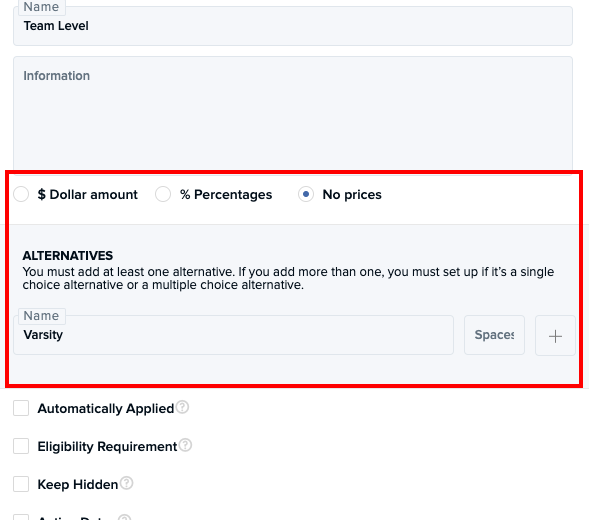
For each Team Level, you will need to create an Alternative.
Example: Varsity, Junior Varsity, Modified, etc.
8. Name the Alternative.
9. Click the + icon.
10. Set individual prices and spaces.
What options do I have for team levels?
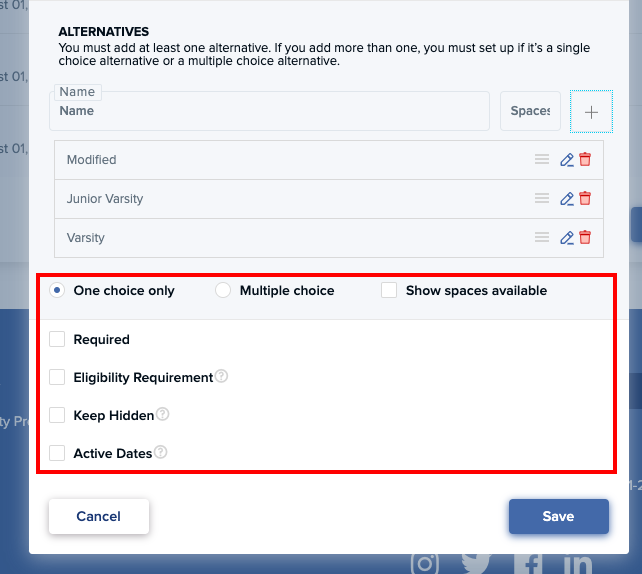
Set Eligibility Requirement: If the Eligibility Requirement is selected, families will need to provide more information on why they are selecting the option chosen.
Keep Hidden:This feature will allow you to keep your Section Option available only for your organization. Families and participants will be unable to see this section option on the registration form.
Set Active Dates: Active Dates allow registrations to open and close automatically at a set date. Learn more in this article: How do I set up active dates on a section?
How do I update a team level?
1. Click Programs.
2. Click the number under Filled.
3. Click the dropdown under Sections.
4. Select Team.
5. Click Update.
Comments
0 comments
Please sign in to leave a comment.